

Build a Web Viewer App
Scaffold and iterate on a FileMaker Web Viewer app with your coding agent.
After ProofKit is connected and your agent understands the file, switch from exploration to building. The goal is a local web project that previews in the browser and can later be deployed into FileMaker.
Build loop
Ask the agent to scaffold a Web Viewer project.
Open your coding agent, such as Cursor, Claude Code, Codex, OpenCode, or another MCP-compatible agent, in an empty project folder before you start.
Copy this prompt into your agent:
Set up a ProofKit Web Viewer project in this folder.The project should use the current ProofKit stack: React, TypeScript, Vite, Tailwind, shadcn/ui, TanStack Query, and TypeGen.
Run the local preview.
The agent should start the dev server and open the app in a browser so it can inspect the result. Agents also have embedded browsers, so they can inspect the result without leaving the agentic loop. If the agent doesn't open a browser, ask it to use it's preview browser.
Use your embedded browser or preview browser to inspect and monitor your work.Ask for a specific screen.
Start with one workflow: a dashboard, detail view, calendar, kanban board, rich form, or data grid.
Build a customer viewer with a searchable list view.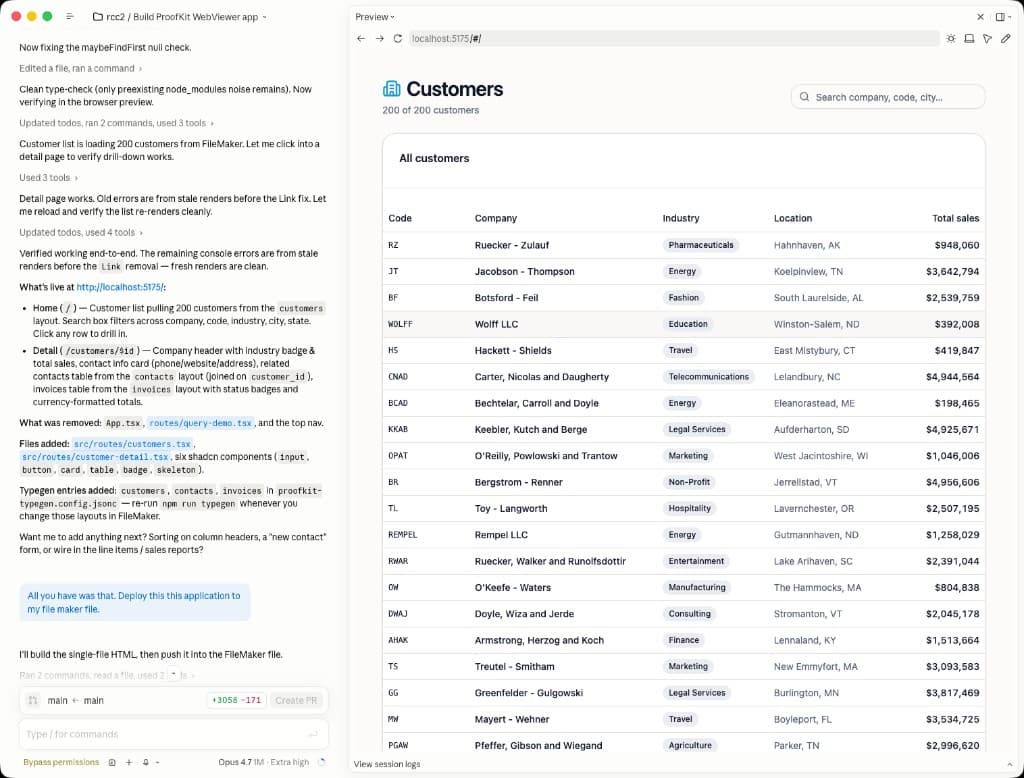
After you ask the agent to build a screen, the desktop session can look like this: agent messages on the left and an embedded browser preview on the right, showing FileMaker data from the connected FileMaker file.
Let the agent iterate.
The useful loop is not just code generation. The agent should typecheck, run lint/build commands, inspect browser errors, and fix issues.
Style and theme
ProofKit projects use shadcn/ui and Tailwind, so the agent can apply a theme or preset by editing normal project files.
Use shadcn/ui Create to explore visual presets. Copy a preset code, then ask your agent to apply it to the project to quickly change colors, typography, icons, and component styling.
Apply this shadcn/ui preset to the project: <preset-code>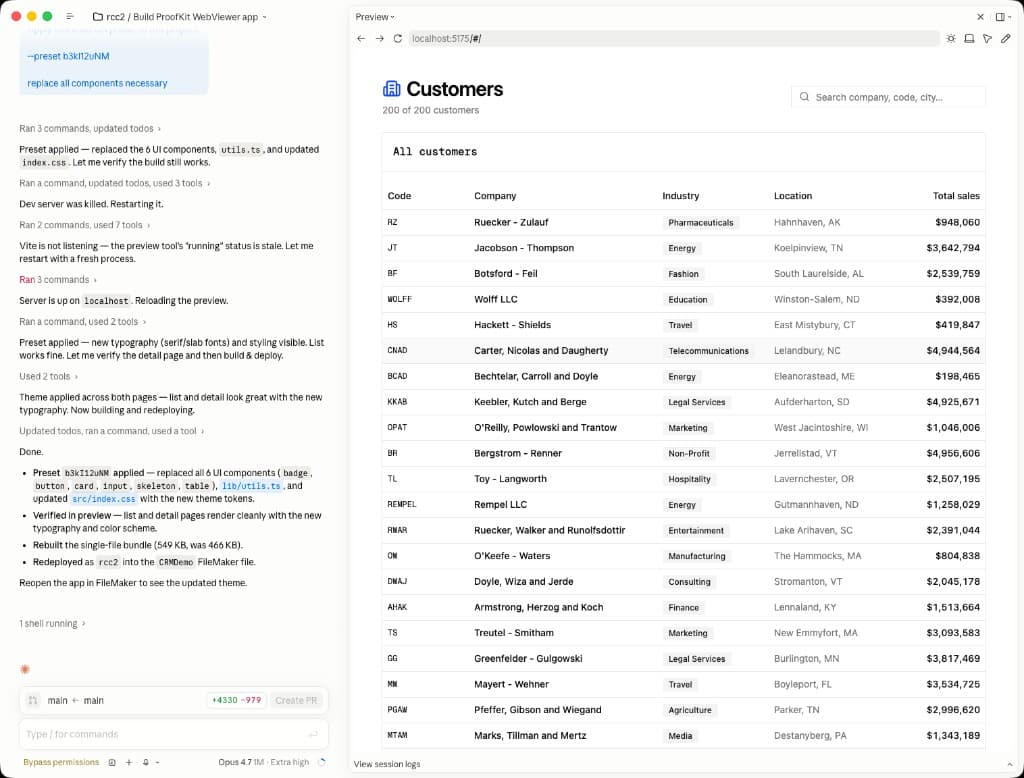
The same generated screen after applying a different preset, with updated colors, typography, and corner radiuses.
Reference docs
- Use Install and Connect for project setup details.
- Use TypeGen when your FileMaker layout metadata changes.
- Use Web Viewer for lower-level bridge behavior.
- Use Hybrid App Data Access for layout and Execute Data API patterns.
Next step
When the app works locally, continue to Deploy to FileMaker.