

Install and Connect
Install ProofKit and confirm your agent can see your FileMaker file.
The first milestone is simple: your coding agent should be able to communicate with an open FileMaker file through ProofKit.
ProofKit installs several pieces that work together: a FileMaker add-on, a FileMaker plug-in, a connector script, an MCP server, and agent integrations.
Install ProofKit
Download and run the installer.
Get the installer for your platform:
The installer sets up the local ProofKit tools and registers integrations for supported coding agents.
When it finishes, fully restart both FileMaker Pro and your coding agent (Claude Desktop, Cursor, etc.) so they pick up the new plug-in and integrations. Skipping this restart is the most common cause of connection failures.
Open your FileMaker file in FileMaker Pro.
ProofKit works against an open local or hosted file. FileMaker Server is not required for the development loop.
Add the ProofKit add-on to the file.
The add-on installs the scripts, layout, table, and custom function ProofKit uses to communicate with your file and store deployed app bundles.
Enable the ProofKit plug-in.
In FileMaker Pro, open the Plug-Ins settings and confirm the ProofKit plug-in is enabled. The Connect to MCP script needs this plug-in to communicate with the local MCP server.
Run the Connect to MCP script.
In FileMaker Pro, run the Connect to MCP script installed by the add-on. It opens the connector Web Viewer that registers your file with the local MCP server. Leave the connector Web Viewer open in Browse mode while you work.
Verify the connection
Open your agent and ask it to confirm that ProofKit can see your FileMaker file. A good first prompt:
Use ProofKit to verify my FileMaker connection, list the connected file, and summarize the available layouts.

If nothing is connected, tell me what to fix before I continue.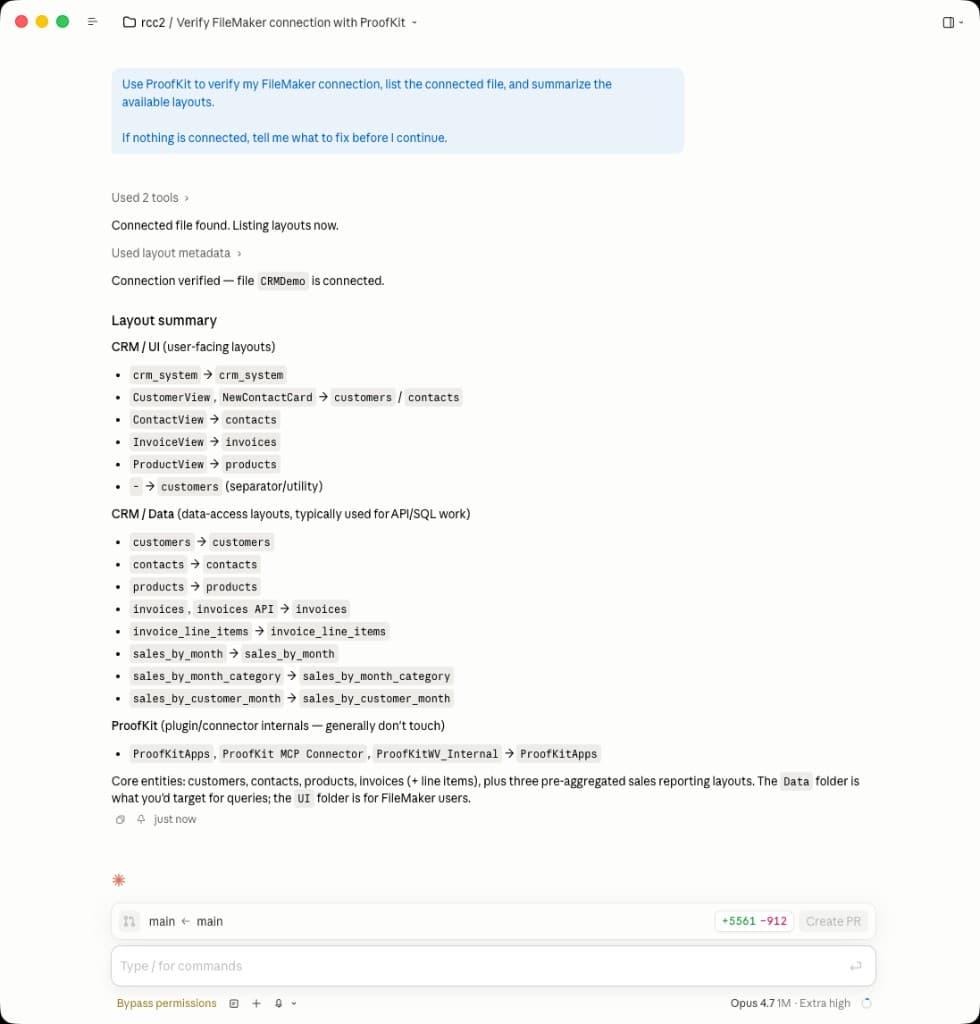
Claude Code following the prompt and confirming the connected file and layouts.
If the agent cannot see your file, re-run Connect to MCP in FileMaker Pro and confirm the connector Web Viewer remains open in Browse mode. For the full checklist, see fmBridge troubleshooting.
Next step
Once the connection works, continue to Explore Your File.