

Troubleshooting
Fix common ProofKit AI setup, preview, and deployment problems.
I see an error about the ProofKit plug-in
There are three common plug-in states:
The plug-in is disabled
If ProofKit is installed but disabled in FileMaker Pro:
- Open FileMaker Pro.
- Go to Settings.
- Open the Plug-Ins tab.
- Find the ProofKit plug-in.
- Enable it.
- Re-run the Connect to MCP script.
The plug-in failed to load
If FileMaker says the ProofKit plug-in failed to load, report a bug in the ProofKit community.
The plug-in is missing
If FileMaker says the ProofKit plug-in is missing, download and install ProofKit again.
If you already downloaded and installed it and still see the missing plug-in error, report a bug in the ProofKit community.
The agent cannot see my FileMaker file
If your agent says no file is connected, or it cannot list layouts or fields:
- Confirm the file is open in FileMaker Pro.
- Re-run the Connect to MCP script in that file.
- Keep the connector Web Viewer window open while you work.
- Confirm that connector window is in Browse mode, not Layout mode.
- Restart the agent app after installing ProofKit if this is your first setup.
This is the most common failure mode. The connector Web Viewer is part of the bridge. If it is closed, hidden in the wrong file window, or switched out of Browse mode, the agent loses access.
If the connection still fails, revisit Install and Connect and the fmBridge troubleshooting notes.
The local preview opens, but FileMaker-backed features do not work
If the browser preview loads but data calls, script calls, or bridge actions fail:
- Ensure the FileMaker file is still connected through Connect to MCP.
- Confirm the connector Web Viewer has not been closed since the dev server started.
- Check that your project is using the standard ProofKit Web Viewer setup with
fmBridge. - Re-run your dev server after reconnecting FileMaker if the bridge was broken during startup.
Typical symptoms include script calls hanging, bridge errors, or a preview that renders static UI but never loads live FileMaker data.
For bridge-specific failures, see fmBridge and Web Viewer troubleshooting.
The generated app is using the wrong fields
If the agent built against stale schema, or TypeScript errors reference fields that no longer exist:
- Make sure the agent is using the correct FileMaker file and layout.
- Re-run type generation after schema or layout changes.
- Restart the dev server after regenerated types land.
- Ask the agent to fix type errors before continuing feature work.
ProofKit apps rely on generated metadata. If your FileMaker schema changes but the project still uses old generated files, the agent will confidently write code against the wrong shape.
Use the TypeGen docs when the issue is clearly about generated types, layouts, or config.
FileMaker says access privileges are damaged
If FileMaker shows a warning that says "The access privileges in this file have been damaged or possibly tampered with", and the file previously had PROOFKIT installed in it, contact us at support@proof.sh.
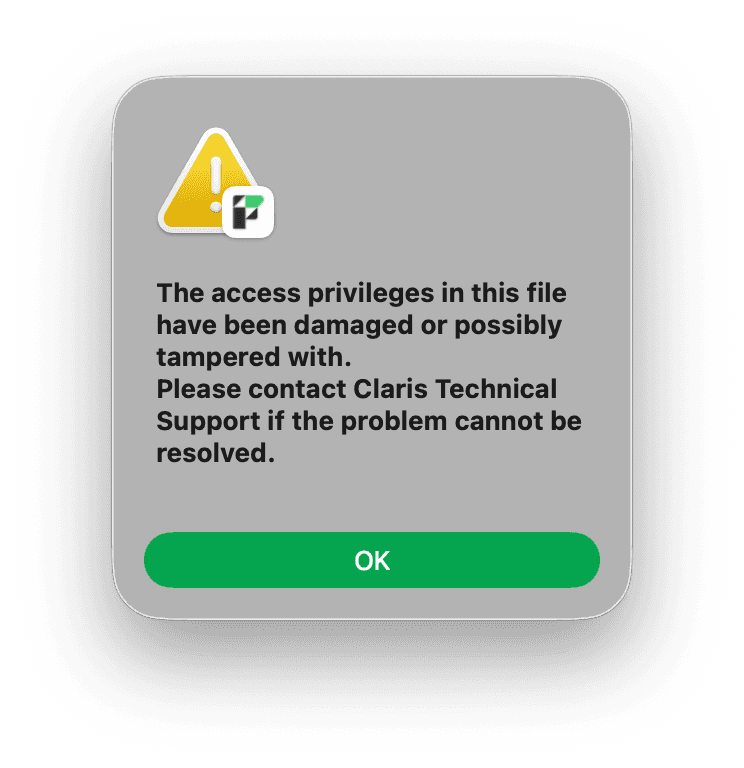
This issue only affected files where the ProofKit add-on was installed with ProofKit 2.04. We fixed the add-on in later versions, but in affected files the 2.04 add-on could fail to uninstall cleanly.
We have a fix for affected files. Send us a note at support@proof.sh, mention that the file had PROOFKIT installed, and we can help repair it.